
Inbox Zero for Outlook: Reclaim Your Sanity and Your Schedule
More Writing



Author: Kasandra Murray
As the owner of Unlucky Umbrella Studio, Kasandra focuses on the importance of growing marketing and operations together. She has over a decade of experience in management, operations, and marketing. She aims to help businesses resolve critical issues and increase revenue, which leads to happier clients and a better work culture.
Editor's Note: This article is focused on Outlook processes but contains Gmail alternatives as well.
Every morning, it’s the same story: you open Outlook and stare into your inbox. Hundreds of unread emails. Dozens of threads you meant to follow up on. Notifications, newsletters, meeting invites, and that one message you saw but can no longer find. If this sounds familiar, you’re not alone, and you’re not failing. You’re just stuck in a system that wasn’t built for clarity.
Inbox Zero isn’t just a productivity buzzword; it’s a mindset shift. It’s about turning your inbox into a tool that works for you. And if you’re a busy professional using Outlook, this guide is your blueprint for making that shift.
Why Users Struggle To Reach Inbox Zero
Email is powerful yet complex. With folders, categories, rules, archives, and search quirks, it’s easy to over-organize or under-manage. The result? A bloated inbox and a constant feeling of being behind.
This article helps professionals who rely on Outlook or Gmail in corporate, educational, healthcare, or other fields where email is their primary means of communication. Cut through the noise and implement Inbox Zero with clarity and confidence.
How to Setup Inbox Zero
1) Create your “Reviewed” folder.
a) Right-click your Inbox > Create new Subfolder.
b) Name the folder Reviewed.
c) Right-click the newly created folder and select Add to Favorites.
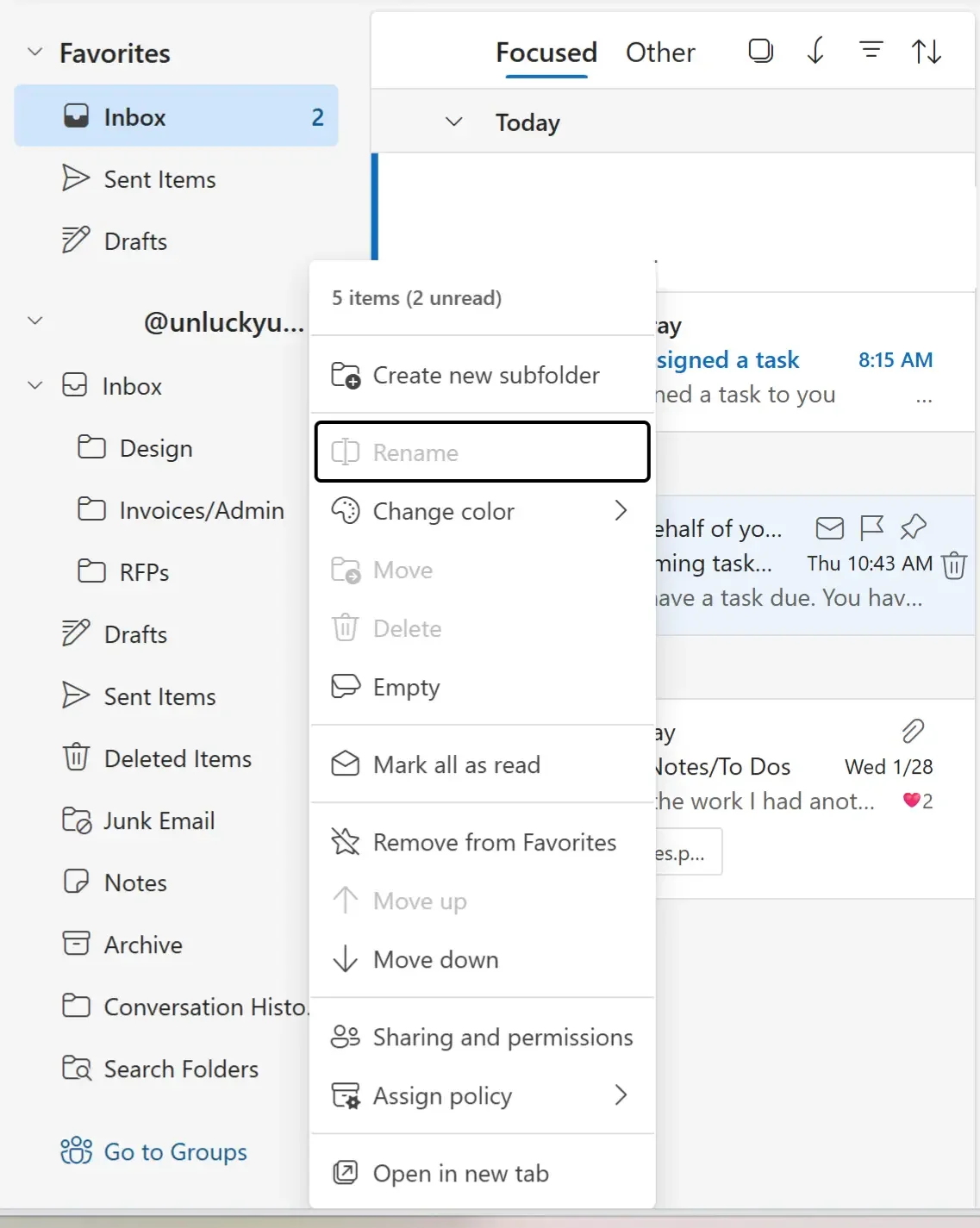
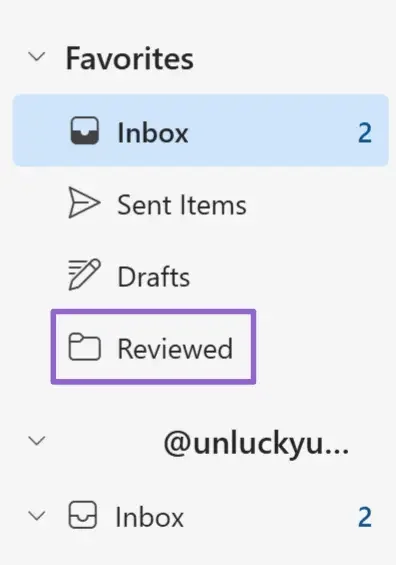
Bonus tip: In Outlook, add this folder to your favorites section to quickly access it.
2) Set up Quick Step (Outlook) / Keyboard Shortcuts (Gmail)
Outlook Quick Steps
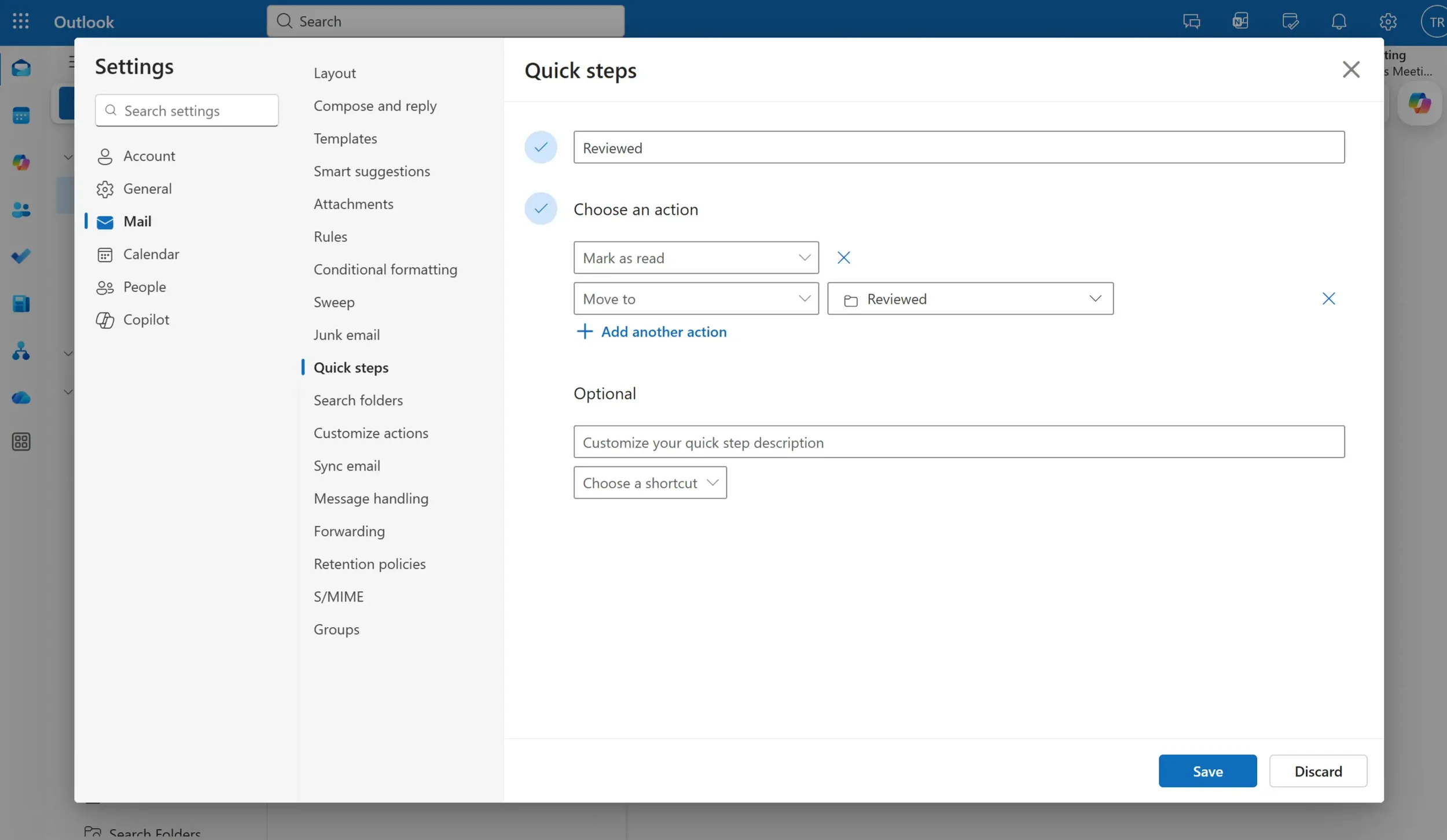
a) Under Settings > Mail > Quick Steps click Add quick step.
b) Name your Quickstep Reviewed
c) Set the first action to Mark as Read.
d) Click Add another action.
e) Set the second action to Move to and choose your Reviewed folder.
f) Optionally, add a shortcut if you'd like.
g) Click Save.
Gmail Keyboard Shortcuts
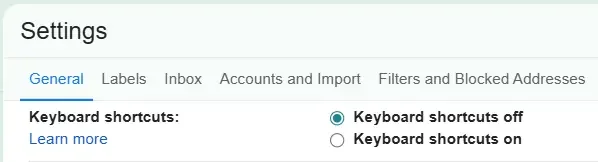
For Gmail users, navigate to Settings.
Scroll down to Keyboard shortcuts and select Keyboard shortcuts on.
At the bottom of the page, click Save Changes.
3) Group your emails by conversation and set the latest at the top.
Outlook
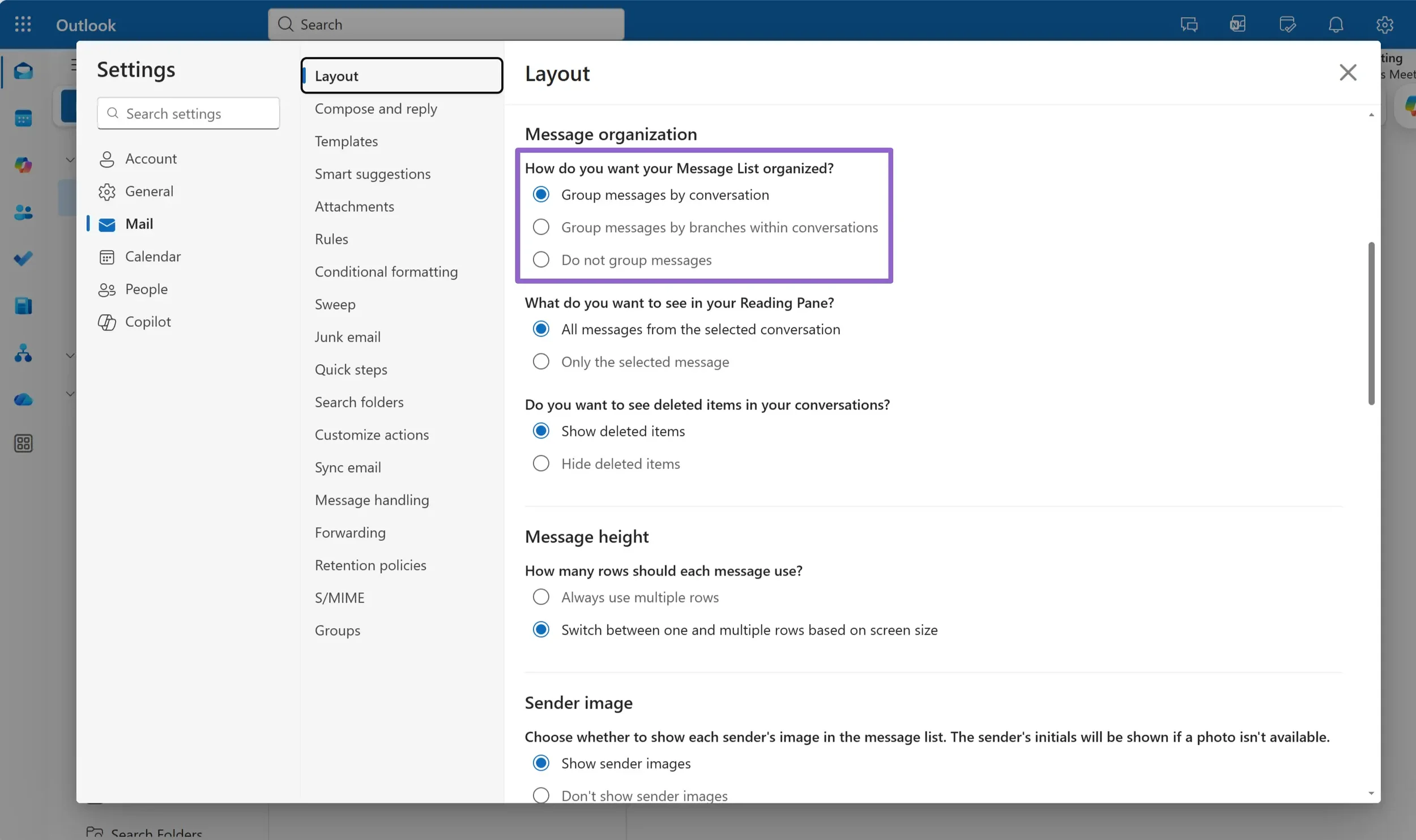
a) Under Settings > Mail > Layout > Message Organization, choose Group messages by conversation.
b) Click Save
c) Under Layout > How do you want messages to be ordered? Choose Newest on top
Gmail
Under Settings > See All Settings > Conversation view on > Save Changes
Editor's Note: This is easily the most controversial step in our Inbox Zero journey. If you are accustomed to not having your emails grouped by conversation, this step may be a bit jarring. Do not skip this step. It’s going to be tempting, but conversation view makes filing emails away and retrieving different parts of a conversation way easier. It tidies up your inbox and makes reaching Inbox Zero easier. You can also view your replies without opening your sent folder.
4) Set up your categories (Outlook) / Labels (Gmail)
We recommend building categories with your entire department in mind. Even if you work alone, consider how categories can help others manage your inbox when you are away. Categories can also help create visual cues and identify priorities within your inbox. Use category colors strategically. Red can be used for urgent emails that require immediate attention. Yellow for important, but not time-sensitive emails, and green or gray for low-priority emails.
Outlook
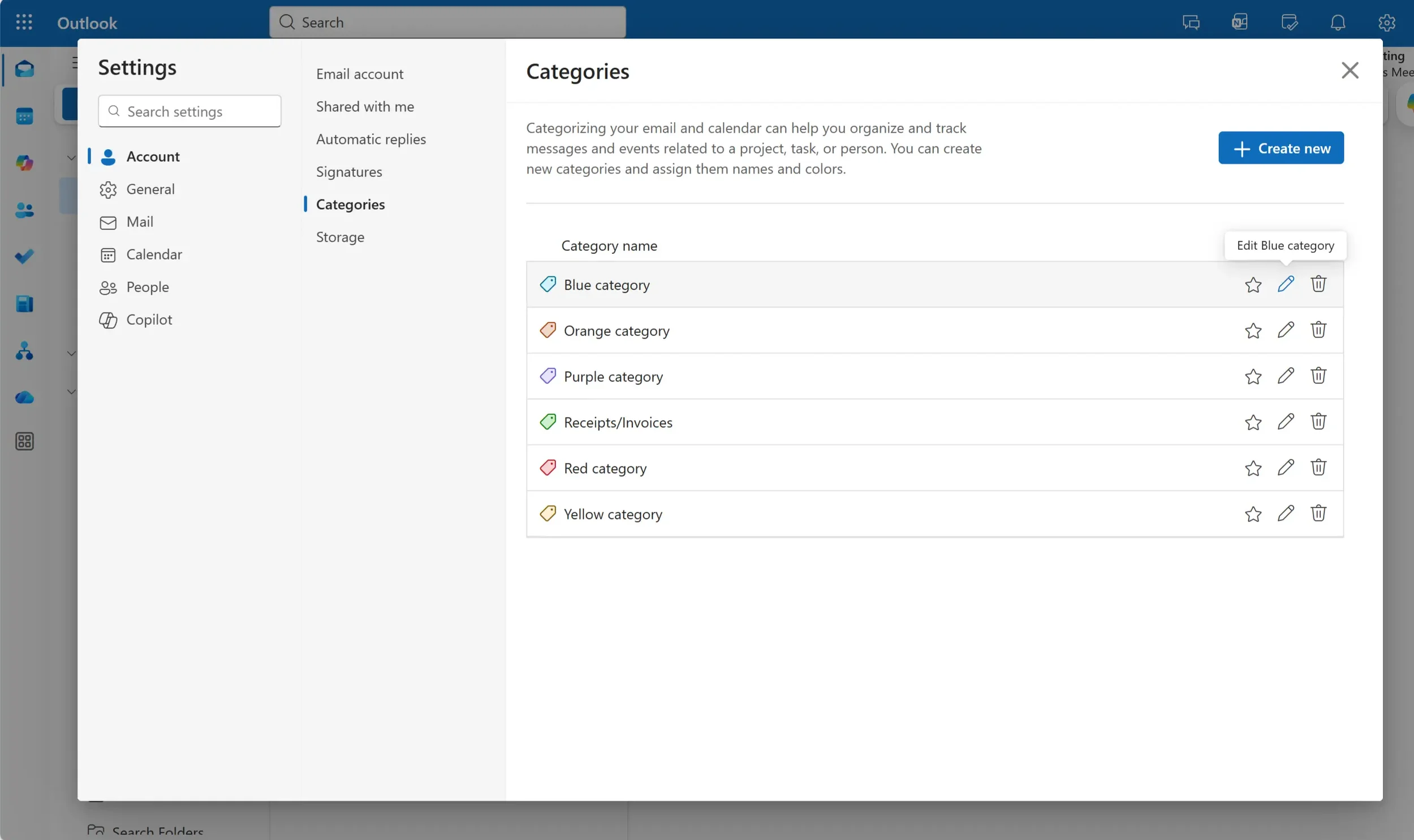
a) Under Settings > Accounts > Categories
b) Click Create new
Gmail
a) Under Labels > +
Recommended Categories
[01] Waiting
This category is for emails where you are waiting on others to complete a task before you can properly review the email. Having a category helps provide quick access to all those outstanding emails, making it easier to follow up. We pair this category with the snooze feature to make sure a task never gets missed.
Optional Categories
[99] Read Later
If you are subscribed to newsletters and want to keep them in your inbox but still save them for later reading, we recommend this category.
Editor's Note: You might not always have time to review and declutter this category. Be realistic in choosing what you want to review later and delete the rest. Unsubscribing from newsletters you no longer find relevant will help as well!
Examples of Categories by Departments
Sales Teams / Customer Service Teams
Lead
Form Submission
Order
Purchasing / Accounting Teams
Receipts / Invoices
Coupons
Vendor Communication
Shipping & Receiving Teams
Tracking Numbers
Delivery Confirmations
Note: Similar to folders, you can add categories to your favorites section. To do this, navigate to Settings > Categories, then select any categories you want to appear in your favorites section by starring them.
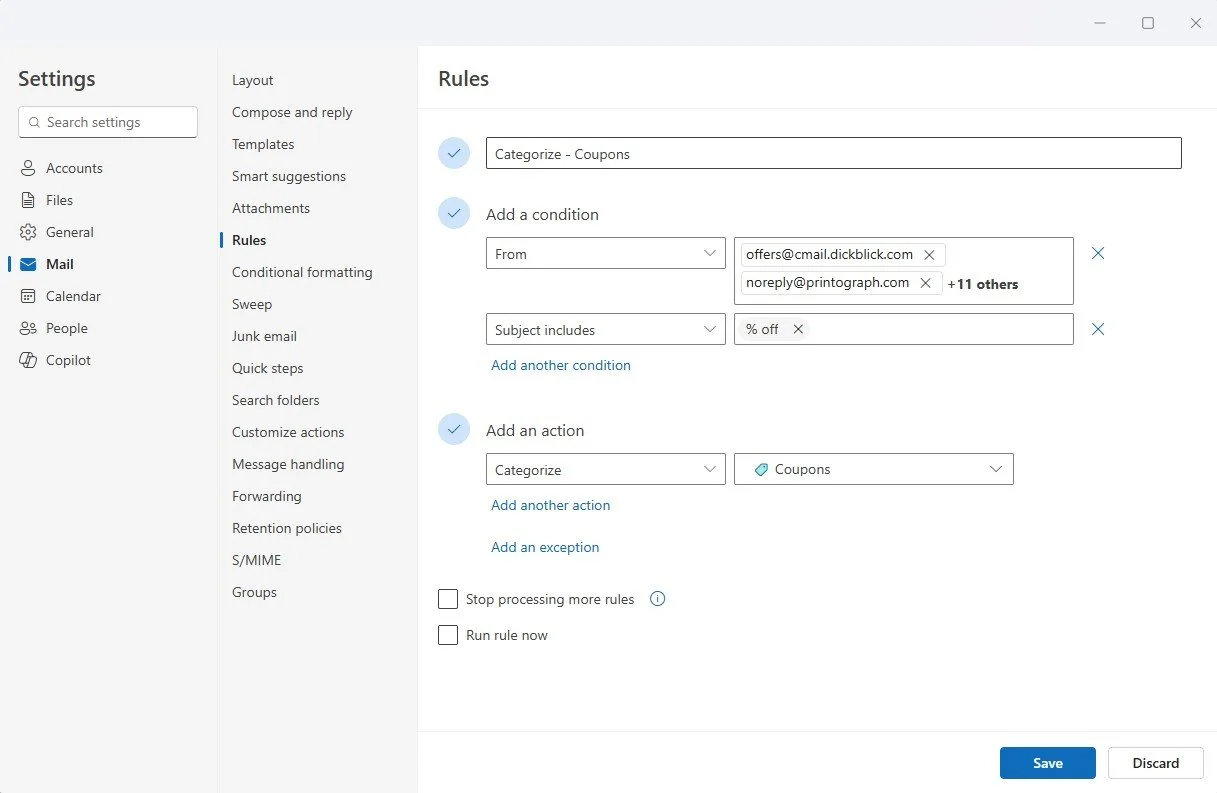
5) Build rules to auto-assign those categories.
Rules deserve an entire article in themselves, but in general can be very straightforward as long as you know what you are looking for. To set up rules, navigate to Settings > Mail > Rules and add new rules. Your conditions will be different for each category you’ve created that you want to automatically assign. Your actions need to include 'Categorize' and select the desired category.
Important: Ensure that you uncheck the 'Stop processing more rules' button. This will prevent other categorization rules from applying, which you may not want. Especially if some emails have more than one category.

For Gmail users, select the Show search options button at the end of the search bar.
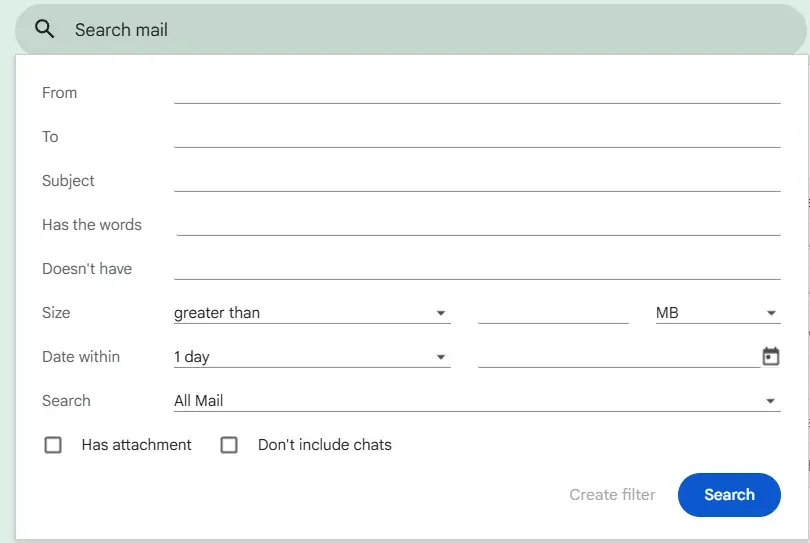
Input desired criteria for your rule and click Create filter.
6) Learn and memorize shortcuts to speed up your workflow.
Outlook
These Shortcuts are for Outlook for Web. To enable these, go to Settings > General and ensure that Outlook for Web is selected under Keyboard shortcuts.
B - Snooze Shortcut
C - Categorize Shortcut
V - Move to Folder (We prefer using the quickstep as it is faster)
Gmail
E - Archive
# - Delete
L - Label
Cleaning Up Your Inbox
This is the hardest part of starting with Inbox Zero. We recommend choosing a time period you are comfortable moving to your review folder, and assume those tasks are completed. We typically advise our customers to start 2 weeks or 4 weeks back at the latest. Anything older than 4 weeks in your inbox should be dragged into your review folder.
From there, start practicing inbox zero and gradually work through older emails. Having an accountability buddy during this step can be a huge difference.
The Core Rules of Inbox Zero in Outlook
These are our rules to help achieve inbox zero. Rules can be bent, but we don’t recommend it, especially when you are getting a feel for Inbox Zero.
1) One Folder Only: Review / Archive
Outlook: Review Folder
Forget the dozens of folders you’ve created. You only need one: Reviewed. This is where emails go once you’ve completed tasks related to them. No more choice overload. No more “Where did I file that?” moments.
Why it works: Reduces decision fatigue and makes search easier.
Gmail: Archive Folder
Gmail doesn’t have folder functionality, so that is where you will archive completed emails. You can find all your archived emails by searching in:arcive
2) Use Categories / Labels + Rules to Automate
Outlook’s Categories and Gmail’s Labels are your best friends. Set up rules to automatically assign categories to incoming emails. This helps you sort and prioritize without manual effort.
Pro Tip: Apply the KISS principle: Keep It Simple and Straightforward. Don’t overcomplicate your categories. If you work in a department, we recommend having everyone use the same categories. This makes managing coworkers’ emails while they are out on vacation simple.
3) Delete Emails You’ll Never Need Again
Password resets, account verifications, meeting invitation confirmations, junk email, and daily updates (such as Microsoft Planner) are examples of emails that don’t need to be saved after you’ve viewed them.
How it Helps: Your organization likely has a retention policy on deleted items. By deleting clutter, your search will be cleaner and easier to use.
4) Snooze Emails You Can’t Address Today
Snoozing can be a powerful tool to help you reach inbox zero. It stores the email away until a specified date and time, then retrieves it and returns it to the top of your inbox when that time arrives. We highly recommend using it to help you stay on top of tasks you’ve assigned to others or tasks you can’t address today.
Note: The Snooze feature is not available for group / shared mailboxes. You can work around this with the schedule send feature.
5) Don’t Stress About Perfection
Inbox Zero is a goal, not a mandate. If you’re in a communication-heavy role, it’s normal to hover near zero without always hitting it. The point is progress, not perfection.
Final Thoughts
Inbox Zero isn’t about being obsessive; it’s about being intentional. By following these Outlook-specific rules, you’ll spend less time managing email and more time doing meaningful work. You’ll feel lighter, more focused, and more in control.
Need to implement Inbox Zero for yourself or your team? Contact us today to help.

Employee retention has become a major challenge for print shops facing ongoing labor shortages and hiring difficulties. This article explores four proven employee retention strategies that can help reduce employee turnover.